

Theme Builder
Table of Contents
Theme Builder provides a graphical interface to explore and preview CSS customization options for various ThoughtSpot components. You can adjust style settings and view the changes in real time before applying them to embedded ThoughtSpot components, such as Liveboard, Visualization, Search, Spotter, and full application experience. Theme Builder also allows you to import and export CSS variables with custom values in JSON format.
When Theme Builder is enabled on your ThoughtSpot instance, you can access it by navigating to Develop > Customizations > Theme Builder. You can also access it from in-product help by clicking Guides > Live Playgrounds > Theme Builder in the ThoughtSpot UI.
Try out styles and load changes🔗
To try out the customization options:
-
Go to Develop > Customisations > Theme Builder.
-
Choose the desired embed component from the dropdown on the left panel.
-
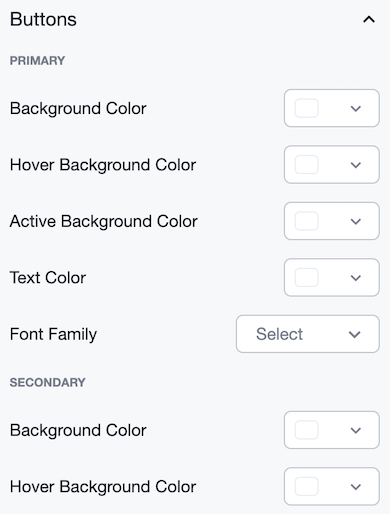
Select the UI element or property to customize. For instance, if you want to edit the background color of the context menu, then click the dropdown for the Context Menu. Click on the text box for Background and select your desired color.
If you want to the exact variable name of the element as in ThoughtSpot, hover over the name of the element in the left panel.
-
You will see the style customizations you just applied in real time, as the iframe refreshes automatically on each customization with your selected input.
Export CSS variables in JSON format🔗
To download a copy of the CSS variables in JSON:
-
In the Theme Builder Playground, click Export JSON.
-
To copy the CSS variables, click Copy JSON.
-
To download the JSON to your local directory, click Export.
You can use this exported JSON to implement the style in your embedded ThoughtSpot instance.
Import CSS variables with custom specifications🔗
Theme Builder also lets you iterate on existing themes that were previously created. You can use an existing style in Theme Builder, and add to it by importing the theme in JSON. To upload a set of CSS variables in JSON format:
-
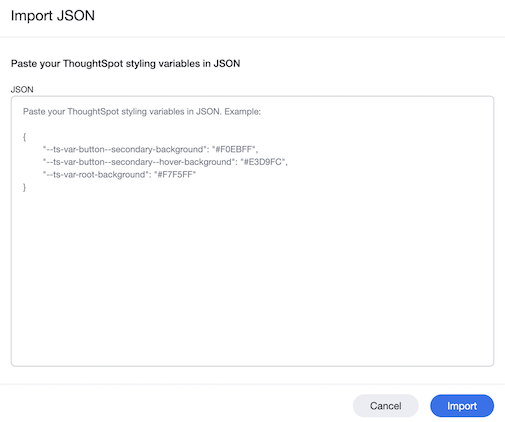
In the Theme Builder Playground, click Import JSON on the bottom of the left panel.
The Import JSON modal opens.
-
Paste the JSON with your custom specifications. Currently, the Theme Builder supports only the JSON styling variables.
-
Click Import.
If there are no errors, a success message appears at the bottom left and the iframe refreshes with the applied JSON.
If there are no errors, a success message appears at the bottom left, the iframe refreshes with the applied JSON, and the variable values are displayed on the left panel.